Content Selector SDK
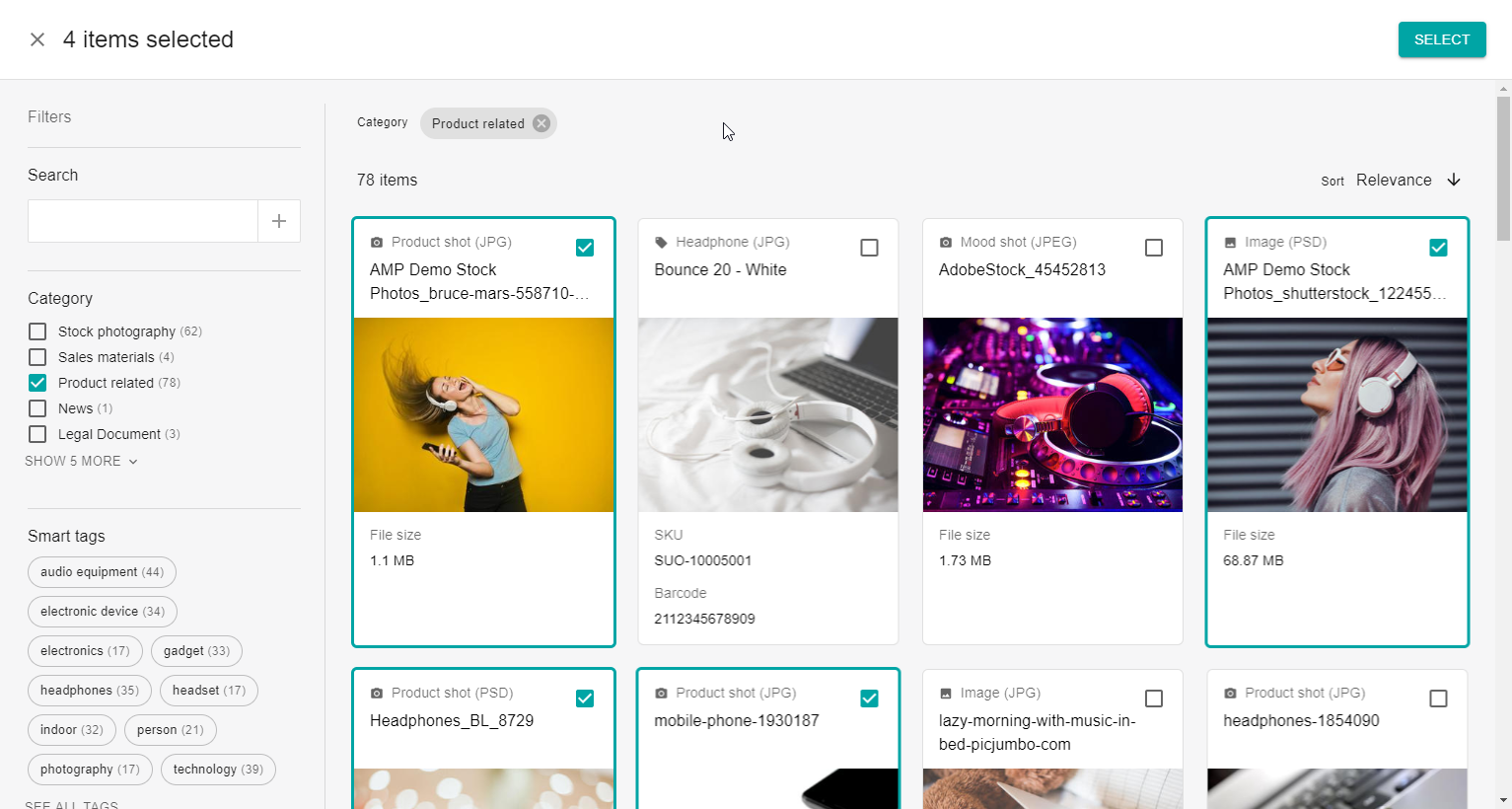
The Aprimo Content Selector is a pre-built UI that allows users to select content items from Aprimo DAM within external systems. Aprimo Content Selector can be launched using standard JavaScript.
Try out this Aprimo Content Selector demo!
Configure Aprimo Content Selector Options
Usage
To open Aprimo Content Selector, use the dedicated endpoint:
https://<tenant>.dam.aprimo.com/dam/selectcontent
The Aprimo Content Selector must be used in a standalone browser window or tab.
If the user is not logged in, they will be redirected to the login page. After successful authentication, the Content Selector will appear, allowing them to select content items.
Once the user has made a selection and confirmed it, the Aprimo Content Selector will call back to the opener using the postMessage API, which is supported by all modern browsers. See documentation on MDN.
Options
| Option | Data Type | Description | Defaults |
|---|---|---|---|
title | string | The title to display in the Aprimo Content Selector header | Adapts to select option |
description | string | The description to display in the Aprimo Content Selector header | No Default |
accept | string | The label of the confirm button | 'Select' |
limitingSearchExpression | string | A DAM search expression to control the presented content items. The context of the search expression is always Record. See Searching for records for more information. | '*' |
select | string | Specifies whether the user can select a single asset, multiple assets, a file (main file or a rendition), or a single public rendition*. Possible options are single, multiple, singlefile, or singlerendition. | 'multiple' |
dialogMode | string | Specifies the dialog mode of the content selector. This controls the placement of the dialog buttons: default puts the buttons at the bottom, fullscreen puts them in the header bar Note: When ‘singlerendition’ is the passed value for the ‘select’ option then ‘dialogMode’ will be fullscreen. | 'default' |
facets | string[] | An array of facet names to use in the Aprimo Content Selector. The specified facet names must refer to registered facets and the names are case sensitive. When no facets are specified, the facets configured for search will be used. To disable facets, specify an empty array. | No Default |
targetOrigin | string | Specifies what the origin of targetWindow must be for the event to be dispatched. See documentation on MDN | '*' |
When using the select option singlerendition you must also use limitingSearchExpression = 'latestversionofmasterfile.haspublicuri = true' to ensure Content Selector will only show records with active Public Links.
Select Options
single- Select a single asset from Aprimo and return the Record ID.multiple- Select multiple assets from Aprimo and return a list of Record IDs.singlefile- Select an asset and view its Crops and Renditions, then select a Crop, Rendition, or the Master File. Returns the Record ID and an Additional File ID if applicable (Crop or Rendition).singlerendition- Select an Asset and a Public Link. Returns the Record ID and the Public URI.
dialogMode Options
fullscreen- Places the Accept button at the top of the page and omits the Cancel button.default- Places the Cancel and Accept buttons at the bottom of the page.
Callback
When the user clicks the accept or cancel button in the Aprimo Content Selector, it performs a callback to the originating browser window using the postMessage API. To handle this communication, you need to listen for message events:
window.addEventListener("message", handleMessageEvent, false);
The returned JSON object event.data will contain following properties:
| Property | Data Type | Description |
|---|---|---|
result | string | Contains either 'accept' or 'cancel', indicating the button the user clicked. |
selection | Selection[] | When the user clicks the accept button, the selection property will contain an array of Selection objects. When the user cancels the operation, the selection property will be undefined. |
Selection Definition
interface Selection {
    id: string,
    title: string,
    rendition?: // Only present during singlerenditon mode
    {
        id: string,
        publicuri: string
    }
    additionaFile?: // Only present during singlefile mode
    {
        additionalFileId: string,
        fileName: string,
        label: string,
        type: string //Crop, Trim, Custom(For Rendition Presets)
    }
}
Example Implementation
To open the Aprimo Content Selector provide the selected options in the option URL parameter. Construct a JSON object containing the options you want to control and convert it into base64-encoded string. As an example:
The value of the option URL parameter must be a base64 encoded string.
<html>
    <head>
    </head>
    <body>
        <button id="openSelector">Open selector</button>
    </body>

    <script>
        const selectorOptions = {
            title: 'Aprimo Content Selector Example',
            description: 'Example of Aprimo Content Selector',
            accept: 'Confirm',
            limitingSearchExpression: 'Title CONTAINS \'cat\'',
            select: 'single',
            dialogMode: 'default',
            facets: ["FileTypeFilter", "ContentTypeFilter"],
            targetOrigin: '*'

        }
        const encodedOptions = window.btoa(JSON.stringify(selectorOptions))
        const tenantUrl = 'https://[AprimoEnvironmentName].dam.aprimo.com'
        const aprimoContentSelectorUrl = tenantUrl + `/dam/selectcontent#options=${encodedOptions}`
        const handleMessageEvent = (event) => {
            // Ensure only messages from the Aprimo Content Selector are handled.
            if (event.origin !== tenantUrl) {
                return
            }
            if (event.data.result === 'cancel') {
                alert('You have canceled the selector')
            }
            else {
                // Do something with the returned data
                console.log(event.data)
                const ids = event.data.selection.map((selection) => selection.id)
                alert("You have selected following ids:\n\n" + ids.join('\n'))
            }
        }

        const openSelector = () => {
            window.open(aprimoContentSelectorUrl, 'selector')
        }

        window.addEventListener("message", handleMessageEvent, false)
        const button = document.getElementById('openSelector')
        button.addEventListener('click', openSelector)
    </script>
</html>