Connecting Power BI
There are multiple ways that you can connect PowerBI to Aprimo data using Aprimo’s Reporting Distribution Module or Aprimo’s Reporting API. This guide covers how to connect PowerBI Desktop to the Aprimo Reporting API so you can build PowerBI reports and dashboards using your Aprimo data.
Below are two sample PowerBI visualizations that have pulled data from the Aprimo Reporting API.
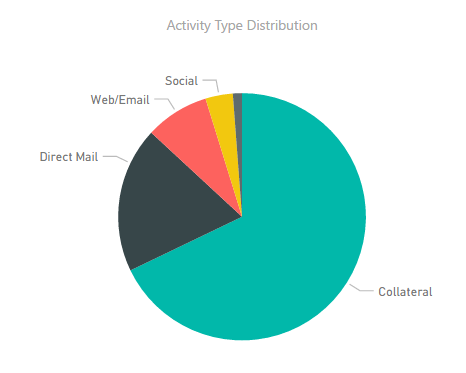
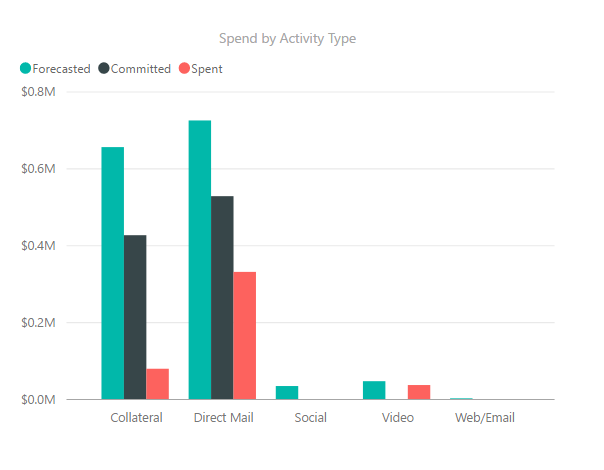
PowerBI is a rapidly evolving platform from Microsoft. Some screenshots are subject to change and may not look exactly as the version you are working with.
How It Works

In order to pull data into PowerBI from Aprimo, you first create one or more Aprimo Reports that contain the data you’d like to pull into PowerBI. Each report you create can be added as a separate datasource in PowerBI and their relationships can be mapped in PowerBI after import.
After you’ve created your Aprimo Report, navigate to the Web Service Access tab of the report and set Allow External Web Service Access? to Yes – Basic Authentication.
- In PowerBI Desktop, click Get Data and select Web.
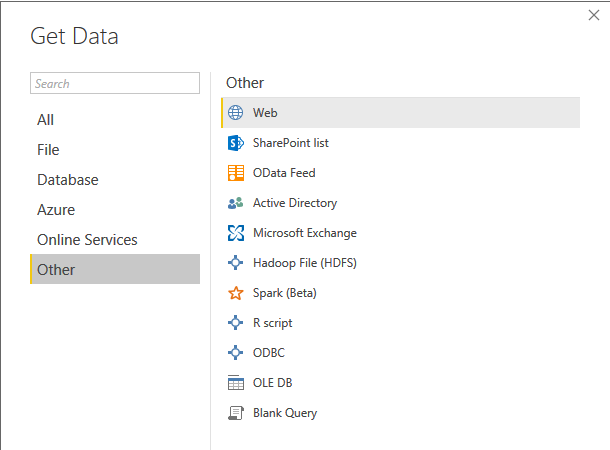
For the URL, enter https://yoursubdomain.aprimo.com/WebApi/api/Reports/{YourReportID}. Your Report ID can be found in the ID field under your Web Service Access tab in Aprimo Reports. Click OK.

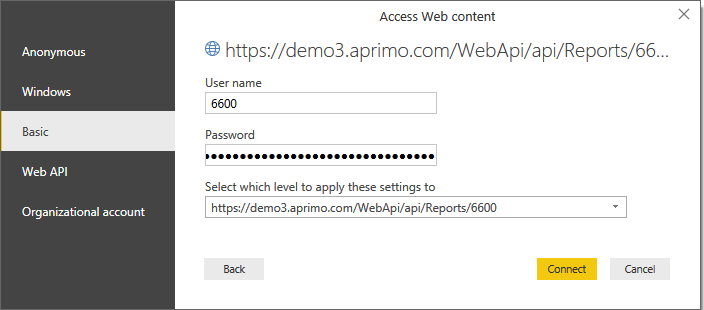
In the Access Web Content window, select Basic on the left navigation. Enter your Report ID in the User name field, and enter your Web Service Authentication Token from your Web Service Access tab on your Aprimo Report. Ensure you select the full URL for setting application, as different reports will require different credentials. Click Connect.
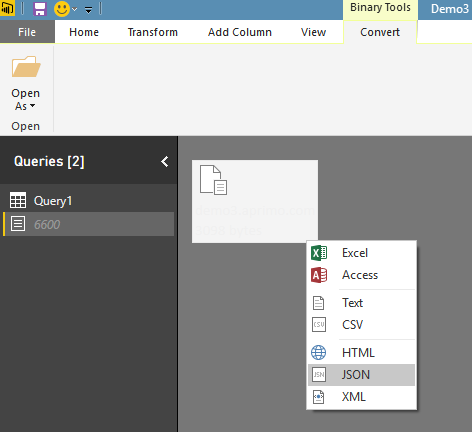
Once your query is created, right click on the data box and click JSON.
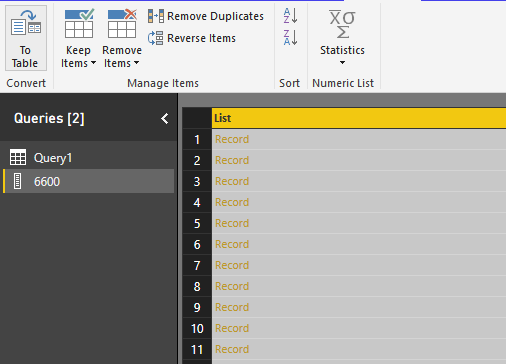
Click on Record.

Click on List.

You should now see a long list of Record types. Navigate to the top left corner and click To Table.
On the To Table box, click OK.

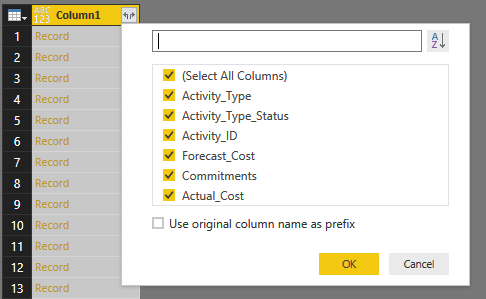
Click the Split Column icon on Column1.
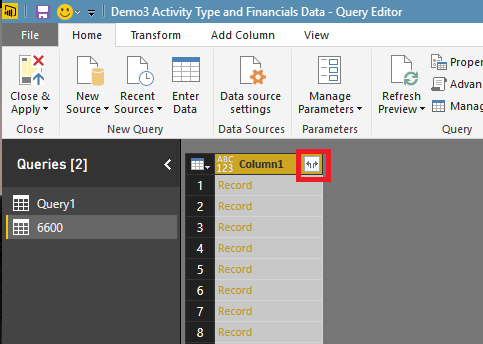
Select all columns and click OK.
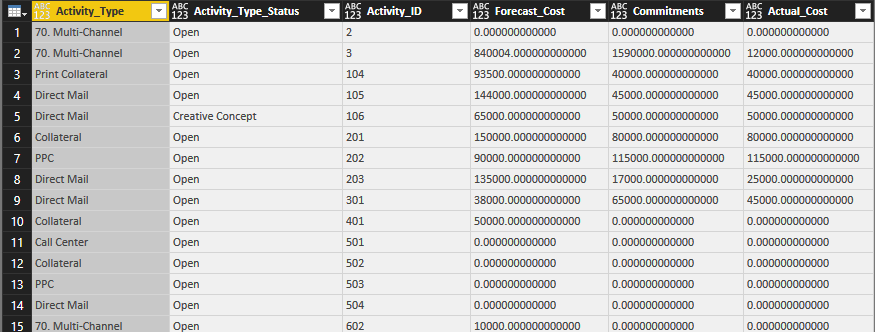
You should now see all columns from your Aprimo Report and get a preview of your data.
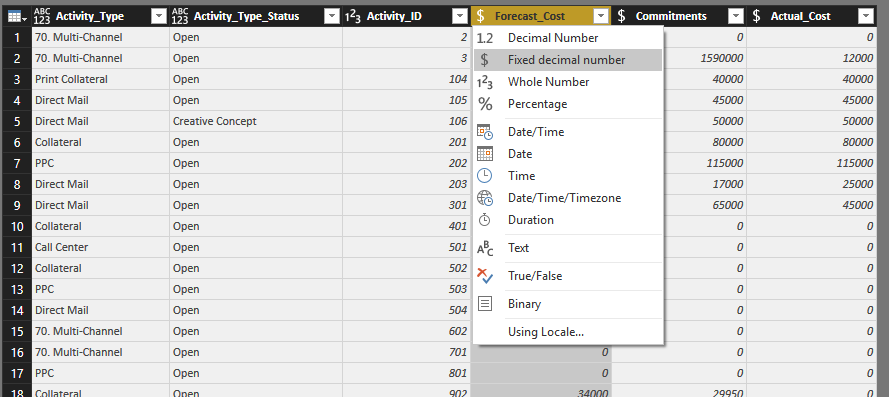
Change your data types according to the data you have brought into PowerBI.
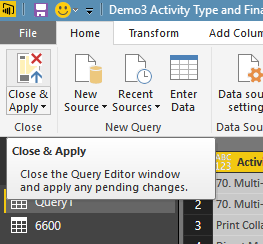
When done, click Close & Apply. You can now use your Aprimo data to build reports and dashboards in PowerBI.